> ## Documentation Index
> Fetch the complete documentation index at: https://docs.metlo.com/llms.txt
> Use this file to discover all available pages before exploring further.
# Azure API Management
Metlo supports capturing logs from Azure API Management using the Diagnostic Logs sent
to Event Hub. Metlo utilizes the
[ApiManagementGatewayLogs](https://learn.microsoft.com/en-us/azure/azure-monitor/reference/tables/apimanagementgatewaylogs)
that are sent to Event hub.
#### 1. Create an Event Hub
To start sending logs, you need to create an Event hub. You can follow these
[instructions](https://learn.microsoft.com/en-us/azure/event-hubs/event-hubs-create#create-an-event-hubs-namespace)
to easily set up an Event Hub. When creating the Event hub, we recommend setting the **Retention time (hrs)**
to the minimum allowed value of 1. Limit the number of partitions for your Event Hub to **100**.
#### 2. Add Shared Access Policy to Event Hub
Navigate to the event hub that was created previously
(ensure that you navigate to the event hub and not the event hub namespace).
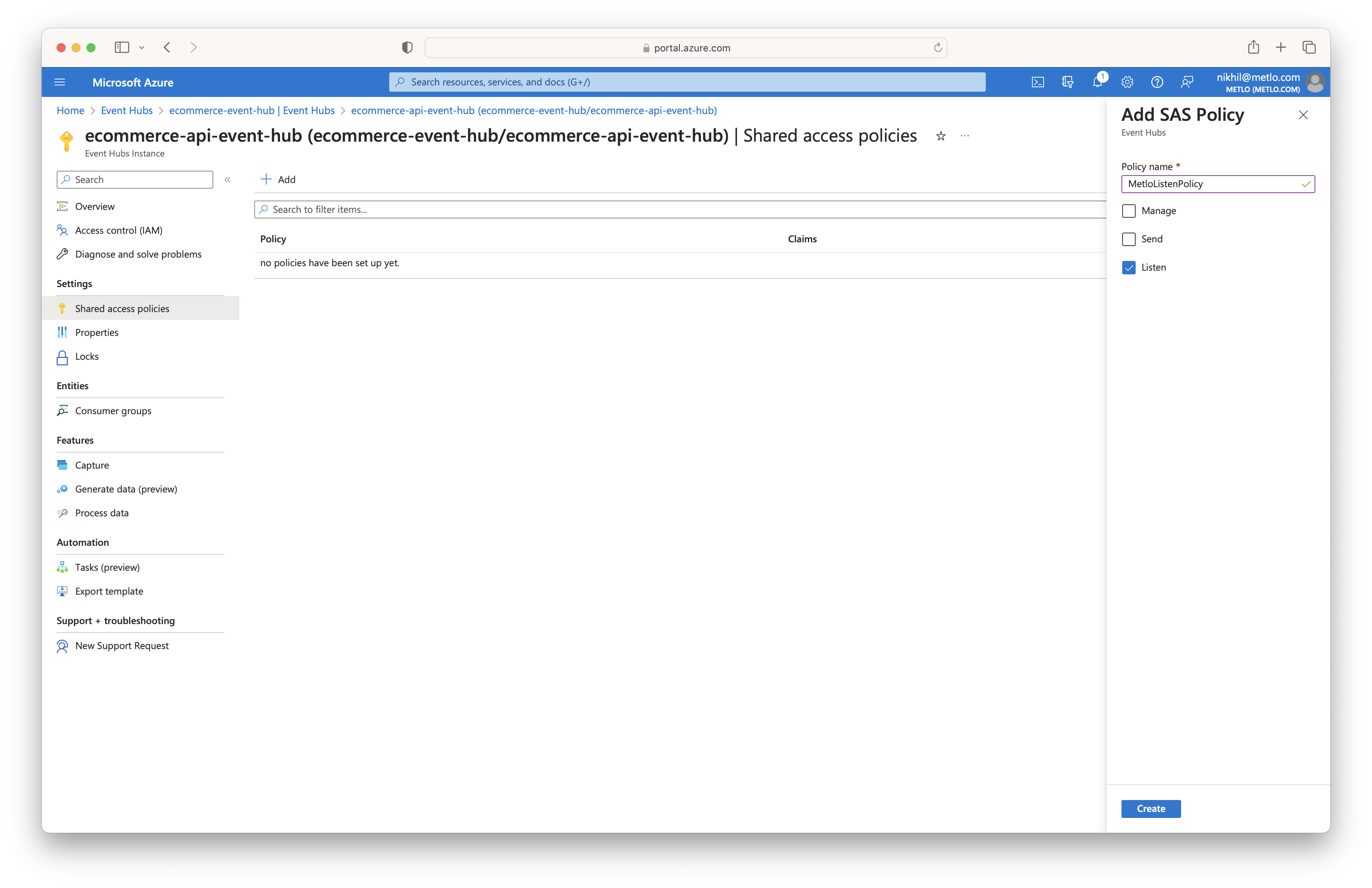
Select **Shared access policies** in the left menu and click on the **Add** button. Fill in `MetloListenPolicy`
for the **Policy name**, check the **Listen** checkbox, and then click on the **Create** button on the bottom.
This will generate shared access credentials that the Metlo agent can use to consume the logs that are being sent
to this event hub.
 #### 3. Modify API Settings
To get the proper data in the Diagnostic Logs, update the Settings for Diagnostic Logs in
your API Management service.
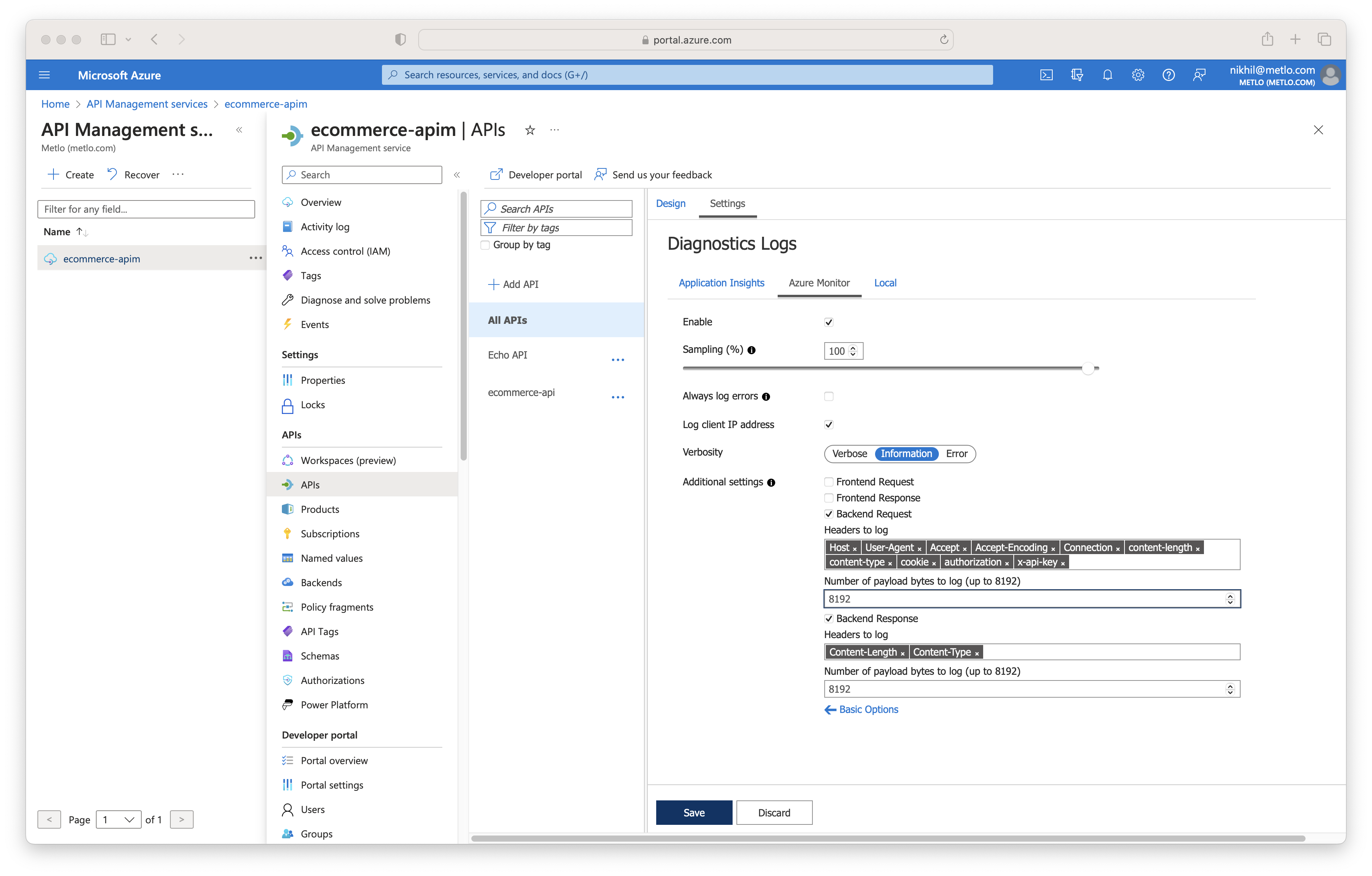
Go to your API Management service and select **APIs** in the left menu. Next, click on
**All APIs** or on the specific API.
Then, select the **Settings** tab on top and click on the **Azure Monitor** tab of the
**Diagnostic Logs** section. Now, check the **Override global** checkbox, set **Sampling** to `100`,
uncheck **Always log errors**, check **Log client IP address**, and set **Verbosity** to `Information`.
To log any request and response headers sent to your APIs, you have to provide a list of the Headers
to log in the **Backend Request** and **Backend Response** section. Some headers to include would be:
**Request**
* Host
* User-Agent
* Accept
* Accept-Encoding
* Connection
* Content-Length
* Content-Type
* Cookie
* Authorization
**Response**
* Content-Length
* Content-Type
To log the request and response body, you can change the value in the payload bytes input with the
max being **8192** bytes.
Once you have updated these values, you can click on the **Save** button below.
#### 3. Modify API Settings
To get the proper data in the Diagnostic Logs, update the Settings for Diagnostic Logs in
your API Management service.
Go to your API Management service and select **APIs** in the left menu. Next, click on
**All APIs** or on the specific API.
Then, select the **Settings** tab on top and click on the **Azure Monitor** tab of the
**Diagnostic Logs** section. Now, check the **Override global** checkbox, set **Sampling** to `100`,
uncheck **Always log errors**, check **Log client IP address**, and set **Verbosity** to `Information`.
To log any request and response headers sent to your APIs, you have to provide a list of the Headers
to log in the **Backend Request** and **Backend Response** section. Some headers to include would be:
**Request**
* Host
* User-Agent
* Accept
* Accept-Encoding
* Connection
* Content-Length
* Content-Type
* Cookie
* Authorization
**Response**
* Content-Length
* Content-Type
To log the request and response body, you can change the value in the payload bytes input with the
max being **8192** bytes.
Once you have updated these values, you can click on the **Save** button below.
 #### 4. Create Diagnostic setting
Select **Diagnostic settings** in the left menu and click on **Add diagnostic setting**.
Enter a name for the diagnostic setting, then check the `Logs related to ApiManagement Gateway` checkbox.
Now, check the `Stream to an event hub` option under the **Destination details** section and fill in the
information for the event hub you created earlier. Once you have finished, click on the **Save** button
in the top left.
When you first add the diagnostic setting, it could take up to 30 minutes before the logs are available
to be consumed by the metlo agent.
#### 5. Set up Metlo Agent
Go to **Container Instances** in the Azure Portal and click **Create**. Fill in the necessary information
for the Project details and select `Other registry` for the **Image source** and select the `Public`
option for **Image type**. In the **Image** input field, enter `metlo/azure-event-hub-agent:latest` and then select
`Linux` for the **OS type**. Ensure you have at least 2 CPU Cores and 4 GB of Memory selected.
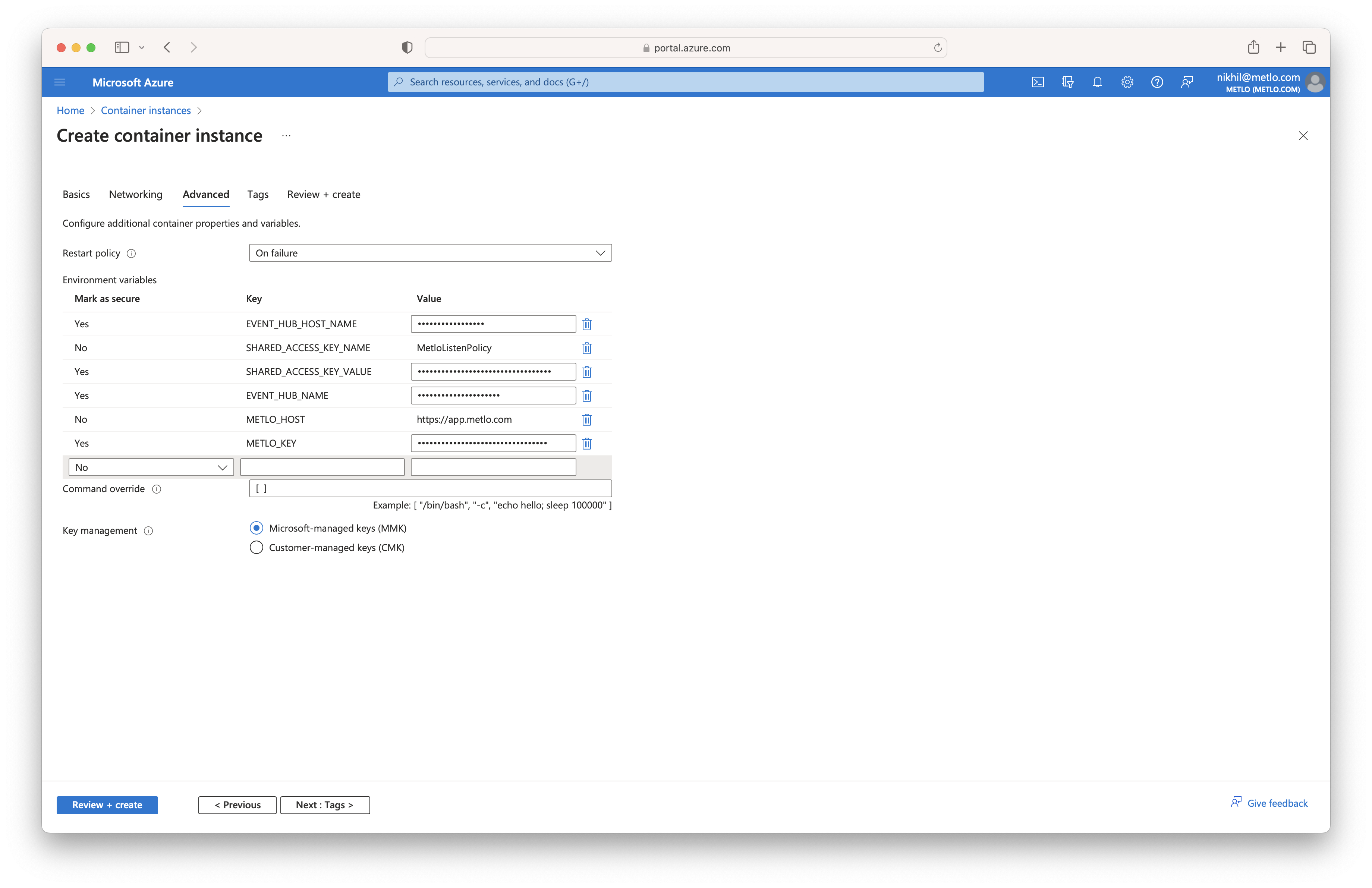
Proceed to the **Advanced** section of the creation process and set the **Restart Policy** to `On failure`. Next,
add the following environment variables:
```
EVENT_HUB_HOST_NAME=
SHARED_ACCESS_KEY_NAME=MetloListenPolicy
SHARED_ACCESS_KEY_VALUE=
EVENT_HUB_NAME=
METLO_HOST=https://app.metlo.com
METLO_KEY=
```
#### 4. Create Diagnostic setting
Select **Diagnostic settings** in the left menu and click on **Add diagnostic setting**.
Enter a name for the diagnostic setting, then check the `Logs related to ApiManagement Gateway` checkbox.
Now, check the `Stream to an event hub` option under the **Destination details** section and fill in the
information for the event hub you created earlier. Once you have finished, click on the **Save** button
in the top left.
When you first add the diagnostic setting, it could take up to 30 minutes before the logs are available
to be consumed by the metlo agent.
#### 5. Set up Metlo Agent
Go to **Container Instances** in the Azure Portal and click **Create**. Fill in the necessary information
for the Project details and select `Other registry` for the **Image source** and select the `Public`
option for **Image type**. In the **Image** input field, enter `metlo/azure-event-hub-agent:latest` and then select
`Linux` for the **OS type**. Ensure you have at least 2 CPU Cores and 4 GB of Memory selected.
Proceed to the **Advanced** section of the creation process and set the **Restart Policy** to `On failure`. Next,
add the following environment variables:
```
EVENT_HUB_HOST_NAME=
SHARED_ACCESS_KEY_NAME=MetloListenPolicy
SHARED_ACCESS_KEY_VALUE=
EVENT_HUB_NAME=
METLO_HOST=https://app.metlo.com
METLO_KEY=
```
 Now click on the **Review + create** button and create your container instance. Once it is deployed, the metlo agent
will start consuming the events being sent to the Event hub you set up earlier.
Now click on the **Review + create** button and create your container instance. Once it is deployed, the metlo agent
will start consuming the events being sent to the Event hub you set up earlier.